


USER GUIDE
The reviews are in. The media is raving about this user guide. It’s a MUST READ! |
|

Table of Contents
Just give me the 2 minute summary please 3
How to install the IMpower integration for Slack 3
How does the IMpower integration for Slack work? 5
Initiating a text message to one person 6
Initiating a text message to a group of people 8
Closing/resolving conversation 9
integration for Slack alerts and notifications 10
Inquiring minds want to know - Common questions 12
Can I use more than one number in the same Slack team? 12
When does a new thread start if someone texts me multiple times? 12
What happens if people text my business in the middle of the night or on weekends? 12
I don’t understand! What do you mean text enable a regular number? You can’t text numbers that aren’t cellphones 12
I have a lot of cellphone contacts already. Can I add them in bulk as IMpower contacts? 13
Included IMpower features you should know about 14
Post Conversation Automation - Rating requests and follow up automation 14
Message Mate lead generation & support texting widget 15
Facebook Messenger integration 16
Forward to email or cell phones 17
Background - What is IMpower Solutions? 18
What is the IMpower integration for Slack? 18
Do I need an IMpower account to use the integration for Slack? 18
Just give me the 2 minute summary please
Np. Just watch this:
How to install the IMpower integration for Slack
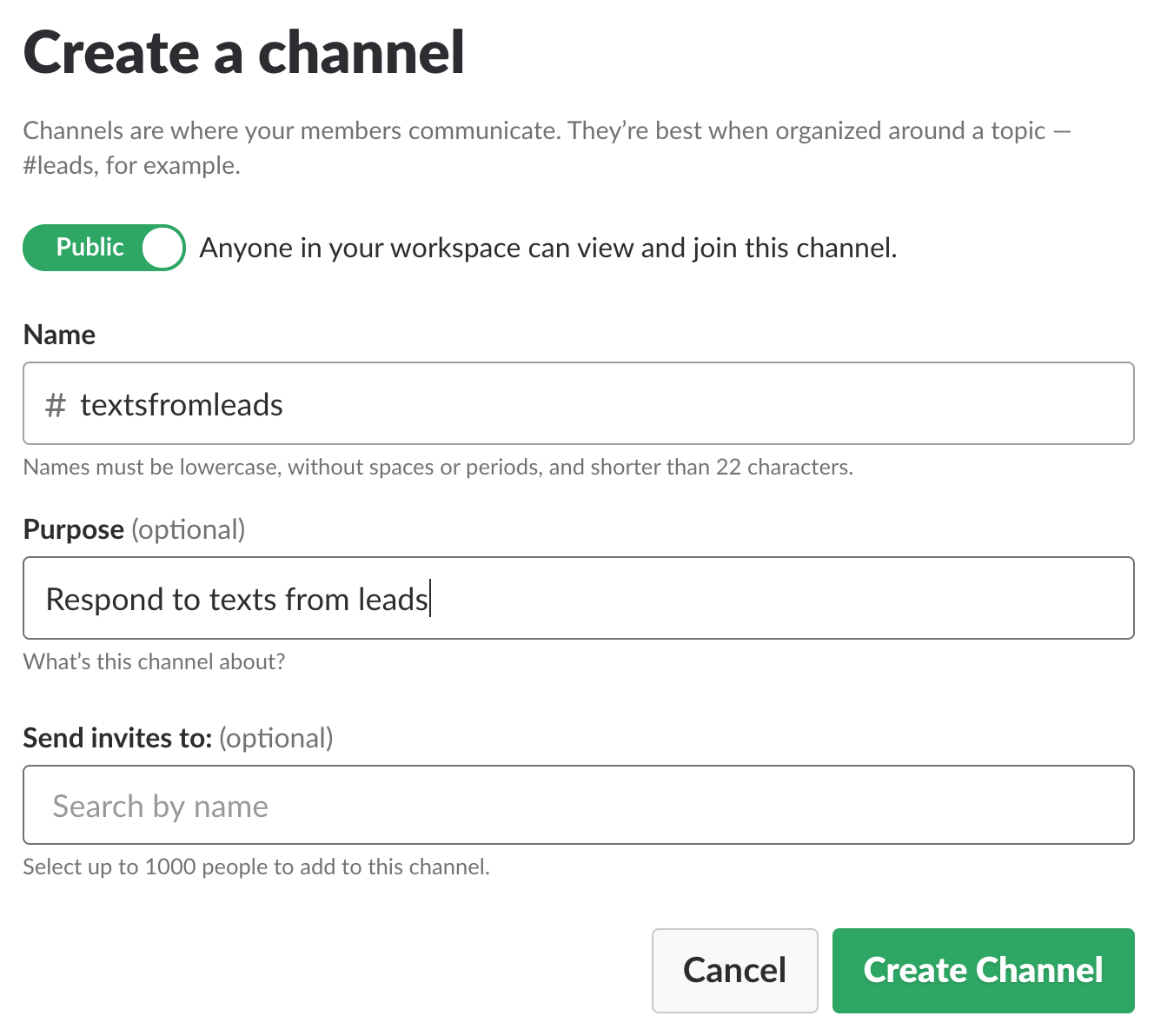
- Create a channel in Slack where you’d like your texts to go
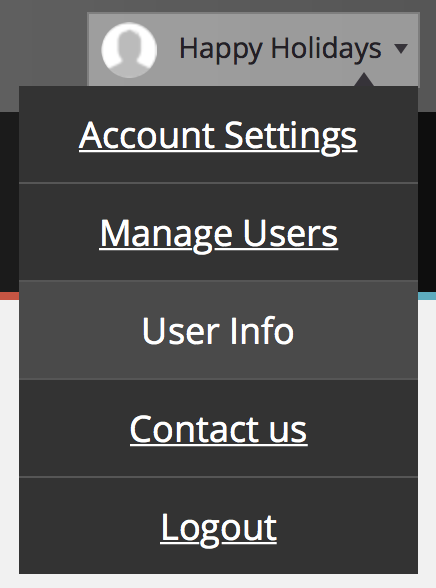
- Login to your IMpower account
- Click on your username (top right) and then on “User Info”
- Click on the “Add to Slack” button

- Select a channel for your texts
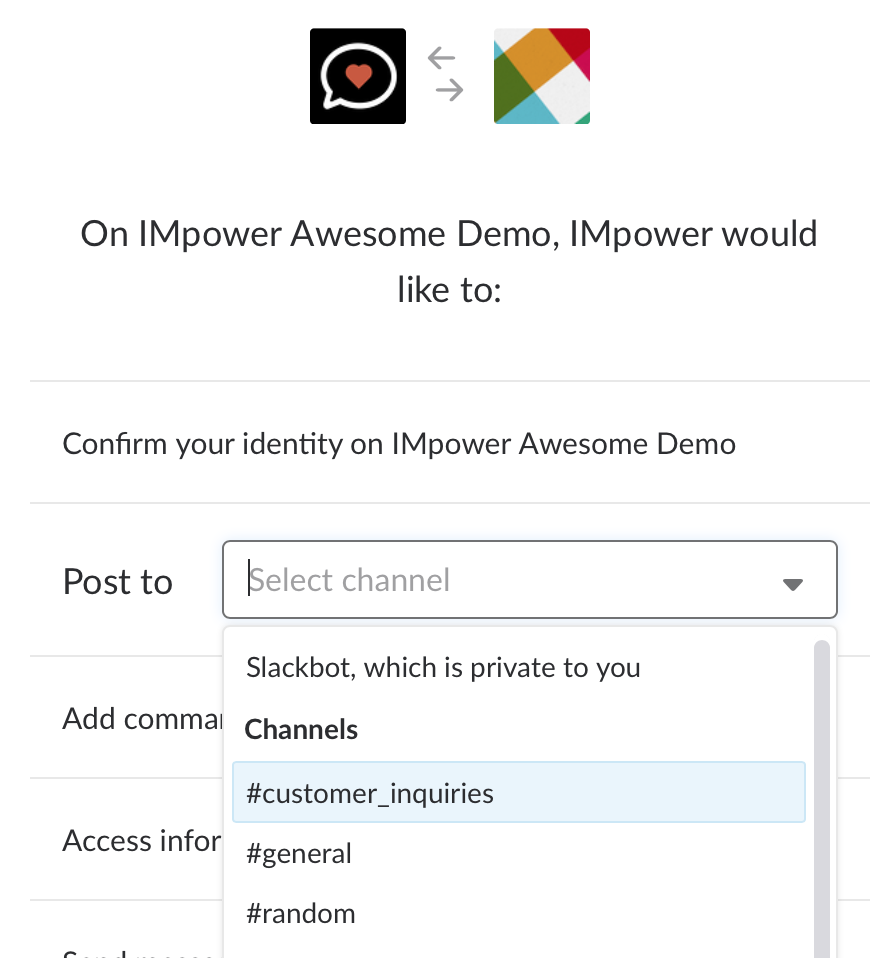
- Authorize the app

Pro tip: Send your business number a test text from a cellphone to try it out.
How does the IMpower integration for Slack work?
Receiving and responding to messages
- Texts arrive in the channel you selected when installing the integration. For faster response times, we recommend your team of responders turn on notifications for this channel.

If the sender is in your IMpower contacts already, you will see their name. If the sender is not in your contacts, you will see the number or email they messaged from.
- Reply to the texts in the thread for the original message (Don’t know what a thread is? Click here).
or
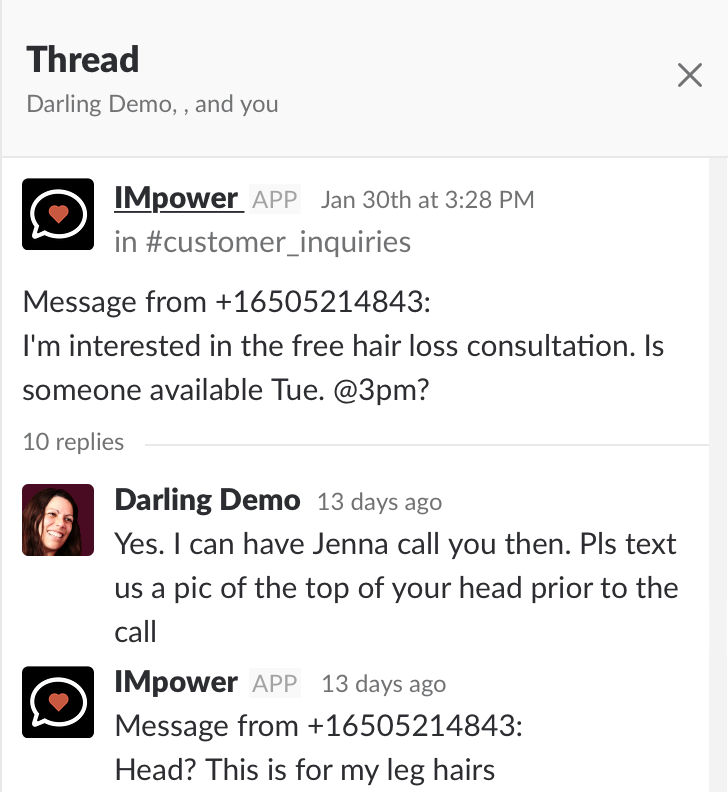
- [Updated August 2019] Want to send an image? Simply attach the image to the Slack thread.
(Note that you cannot initiate a message with an image using /compose. You can send an initial text message and then add an image in the thread)
- If you need help from a team member or just want them to be aware of the conversation @mention them in the thread. The person texting you does not see any messages that are preceded by an @mention.
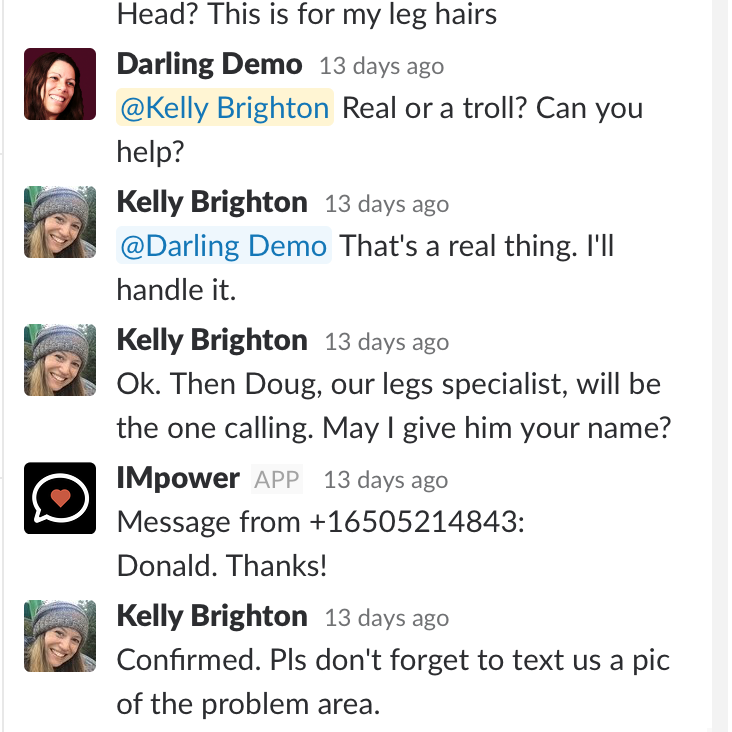
The recipient of your text will see all texts in one conversation, all coming from your business number, no matter how many teammates collaborate in responding.
Initiating a text message to one person
- Type /compose from any channel in Slack.
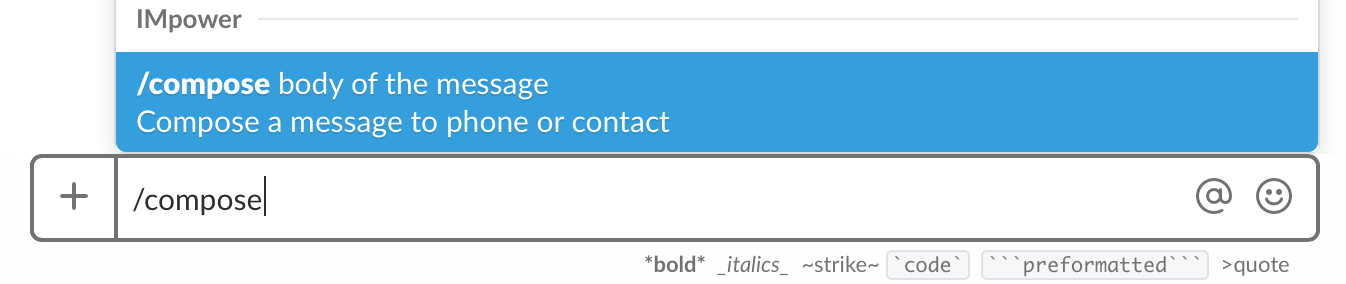
- Type your message and hit “enter”. [Updated August 2019] You cannot initiate a message with an image. You can send an initial text message and then add an image in the thread.

- You will get a prompt to input the sender number or name.

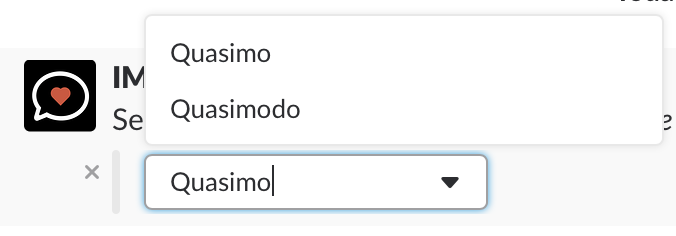
- Begin writing the number/name or select from the dropdown. The prompt will auto complete if you’ve texted with this person before or if they are in your contacts.
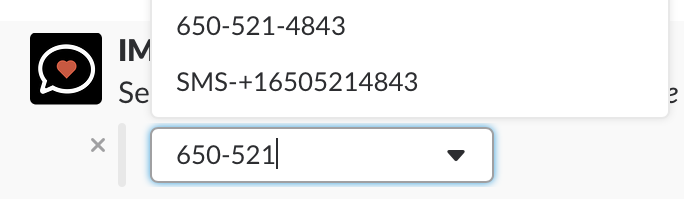
- If the sender is in your IMpower contacts you can input their name instead of their number.
- You have 3-5 seconds to change your mind and cancel the message. Click on “Abort” to do that.

- Once the message has been sent, you will see the @name of the teammate who sent it and the message.
The message will also become part of the thread of messages with this recipient.
If there isn’t one, a reply by the recipient will start one. To add to the message, either /compose again or respond to the thread of your original message.
Initiating a text message to a group of people
- When you save a contact through your IMpower dashboard, you have the option to assign it a group tag. You can assign multiple group tags to the same contact.
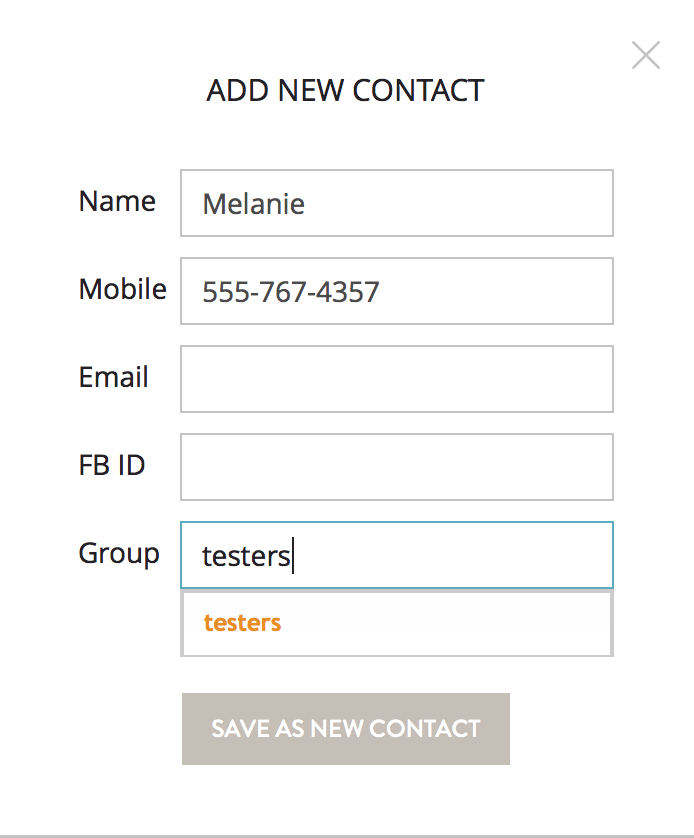
- If you’d like to send a message to everyone in the group, follow the instructions for composing a message and when prompted to select a contact, type or select the group name.
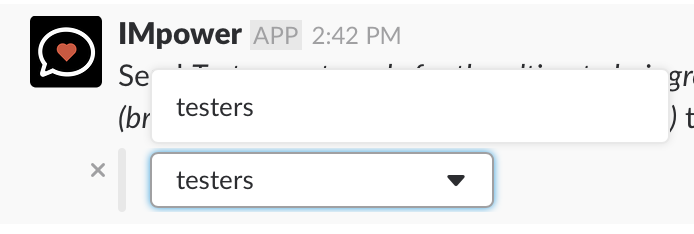

This feature initiates an individual text message to each member of the group. It creates individual conversations, not one big group chat.
- The groups feature is limited to groups of 250 or less. If you need to text with larger groups please contact us at 855-815-7570 (text or call) or email [email protected]
Closing/resolving conversation
- You can close out a conversation by typing the word “Resolve” in the thread.
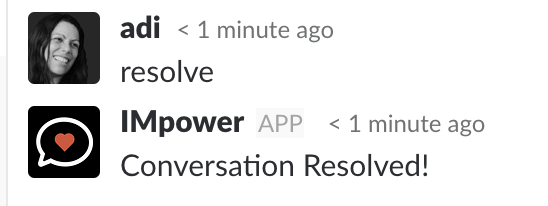
- Closing out a conversation triggers the automated post conversation flow, if one was set up (jump to the Post Conversation Automation section below).
- If a message is added to the conversation after it’s been resolved, the conversation is reopened and the automated post conversation flow is paused. However, if it has been a week since the prior conversation, a new message will start a new conversation.
- If a conversation is not resolved, the Post Conversation Automation will be sent 8 hours after the last business response (but always during business hours).
integration for Slack alerts and notifications
- Message not in thread. To send a text in an existing conversation, it must be in the relevant thread. If you accidentally post it in the main channel feed, you will get the following message:

- Message successfully sent. When you initiate a text message via /compose, you will see a “success” verification when it is sent.

- Message not sent. If your message was not sent for some reason, you will get an alert. Try again and contact us if you’re still having issues.

Some reasons a message might not be sent:
- The number is not textable (e.g. a landline that’s not text enabled)
- The number is not a valid number or the number is not in service
- Carrier errors
- Your internet connection is down, thus Slack is not working
- Slack is down (You can still send the message from your IMpower dashboard)
Note: If the recipient blocked your number from contacting their device, your message will appear to be sent but won’t actually arrive at the recipient device. No alert will be sent (this is not our rule, it’s the carriers).
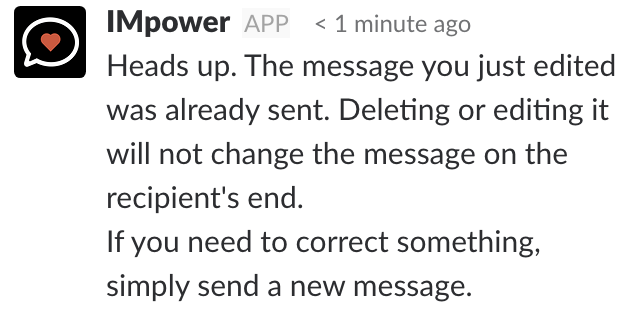
- Your edit is useless. If you edit a message that has already been sent, the edit will stay in Slack but it will not be sent. If you need to correct a message, just send a new one. If you do edit a message that’s already been sent, the following alert will appear:
- Compose not in channel. If you use the IMpower integration for Slack with just one number, you can initiate texts from anywhere in Slack using /compose. If you have multiple numbers/channels, you can only initiate texts from each number’s dedicated channel. Attempting to /compose from outside a channel that’s associated with a number will trigger this alert:

Inquiring minds want to know - Common questions
Can I use more than one number in the same Slack team?
- Yes you can. To install multiple instances for different numbers, please contact us at 855-815-7570 (text or call) or email [email protected].
- You will need to create a separate channel for each number.
- You will still be able to compose and initiate messages but only in the channel assigned to that number (as opposed to anywhere in Slack when you only have one number).
When does a new thread start if someone texts me multiple times?
If there has been a week or longer without any contact, a new thread will start. Otherwise, new texts go in the same ongoing thread you have with your contact.
What happens if people text my business in the middle of the night or on weekends?
- Set up an auto reply for hours when you’re less available and slower to respond. You can do this from your IMpower dashboard.
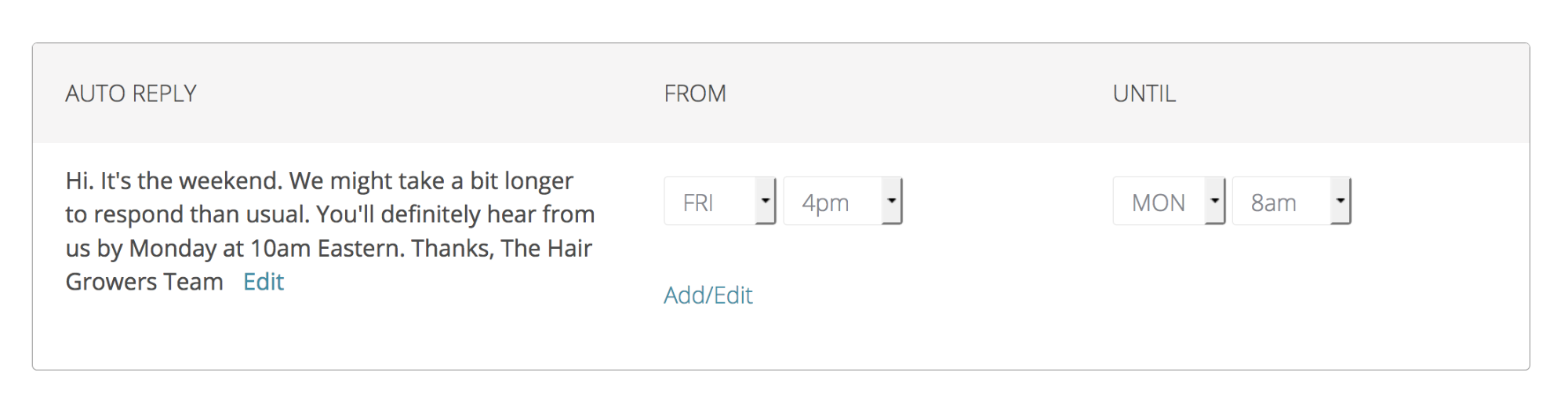
- Login, click on your username (top right), then on “Account Settings”
- Scroll to the Auto Replies section to create your auto reply
- You can create multiple auto replies. Consider having one for business hours and one for off hours
- Don’t forget to change or add an auto reply for holidays or vacations
I don’t understand! What do you mean text enable a regular number? You can’t text numbers that aren’t cellphones
- The magic of technology (and some duct tape) gives us the ability to make almost any number in the US and Canada textable.
- 95% of landlines, VOIP, and toll free numbers can be enabled to accept SMS and MMS.
- Text enabling a number has no effect on its voice services.
- Contact us with the name of your carrier to see if we can text enable your business number.
Can I text images through Slack? [Updated August 2019]
- Yes! With the new integration version release August 2019, you can now text images through Slack.
- To text an image simply add it in the conversation thread as you would any other message.
- If you have multiple images to send, please add them individually
How does pricing work?
- Pricing is driven by three main factors: The numbers you need to text enable, the number of users, and messaging volume.
- Additional factors that can add to pricing: automation, chatbots, integrations with helpdesks/CRMs.
- Contact us to find out more at 855-815-7570 (text or call) or email [email protected]
I have a lot of cellphone contacts already. Can I add them in bulk as IMpower contacts?
- Send us a spreadsheet with at least the following headers: Name, Number, Groups (separate multiple group tags with a comma), to [email protected].
- Contacts will be in your IMpower account (and Slack) within 12-36 hours.
- To see all your contacts in IMpower, login and click on contacts on the top left.

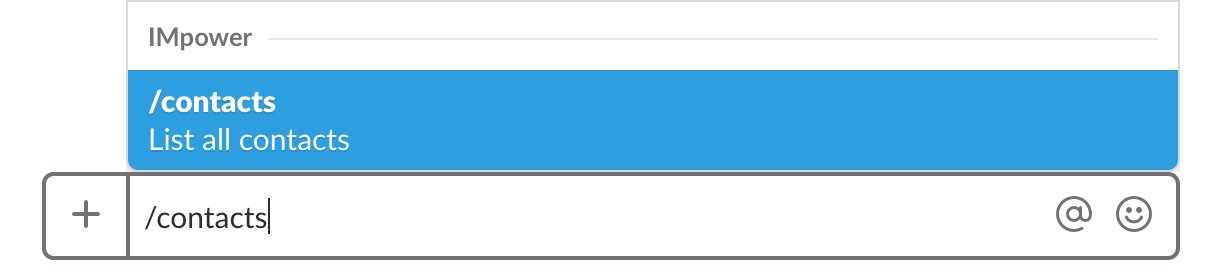
- To see all your contacts in Slack, use the /contacts command. A list of contacts will appear.

Included IMpower features you should know about
Post Conversation Automation - Rating requests and follow up automation
- At the end of every conversation, a message can be sent asking your recipient to rate the conversation.
- Ratings can be on a scale you decide (0-10 is the default) or a YES/NO question (e.g. NPS).
- You can set a dynamic auto reply based on the recipient’s response. Do this in the IMpower dashboard under Account Settings in the Post Conversation section.
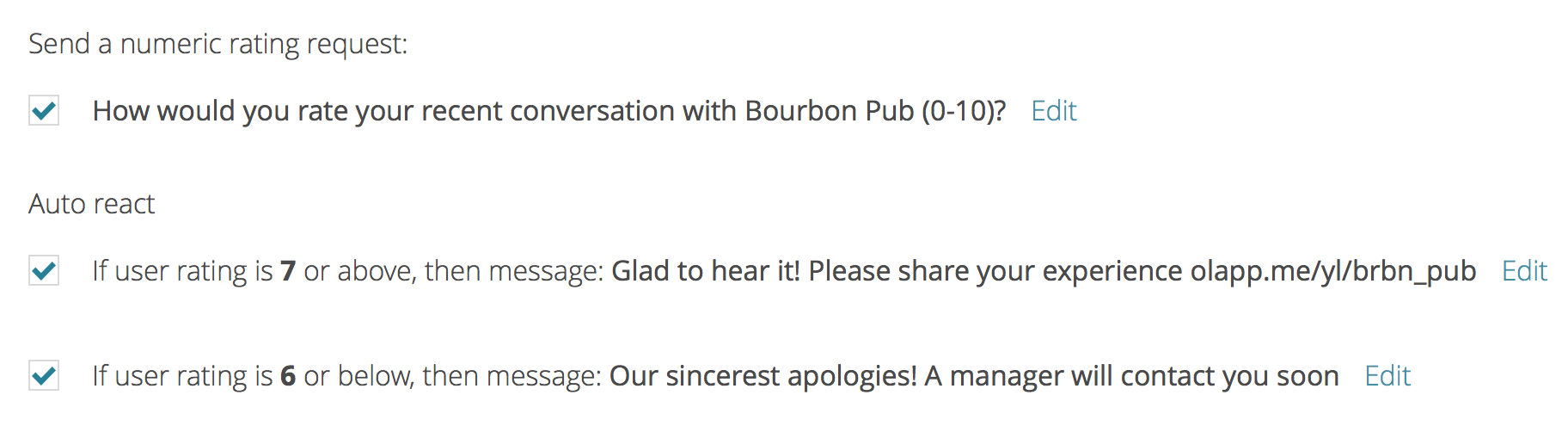
Pro tip: Hitting customers up for a review or social follow is most effective when immediately after a high rating they gave you.
Message Mate lead generation & support texting widget
- Message Mate is a texting widget that sits innocently on your website waiting to spring into action when a customer needs it. It enables them to initiate a texting conversation with your business which they can take with them on the go (they are not stuck in live chat windows).
Watch it in action here: https://www.youtube.com/watch?v=bSBDI2VyHyw
- On desktop, the widget opens a place to write the message and the number. When sent, a conversation is started on the sender’s device. On mobile, it opens up directly in the website visitor’s texting app. This is not only extremely convenient for your visitors, it also has the advantage of providing you with their phone number. Follow up with these visitors via SMS and enjoy 98% open rates and 2-3X the response rates of email.

- You can customize widget colors and messaging from the IMpower dashboard in the Account Settings section.
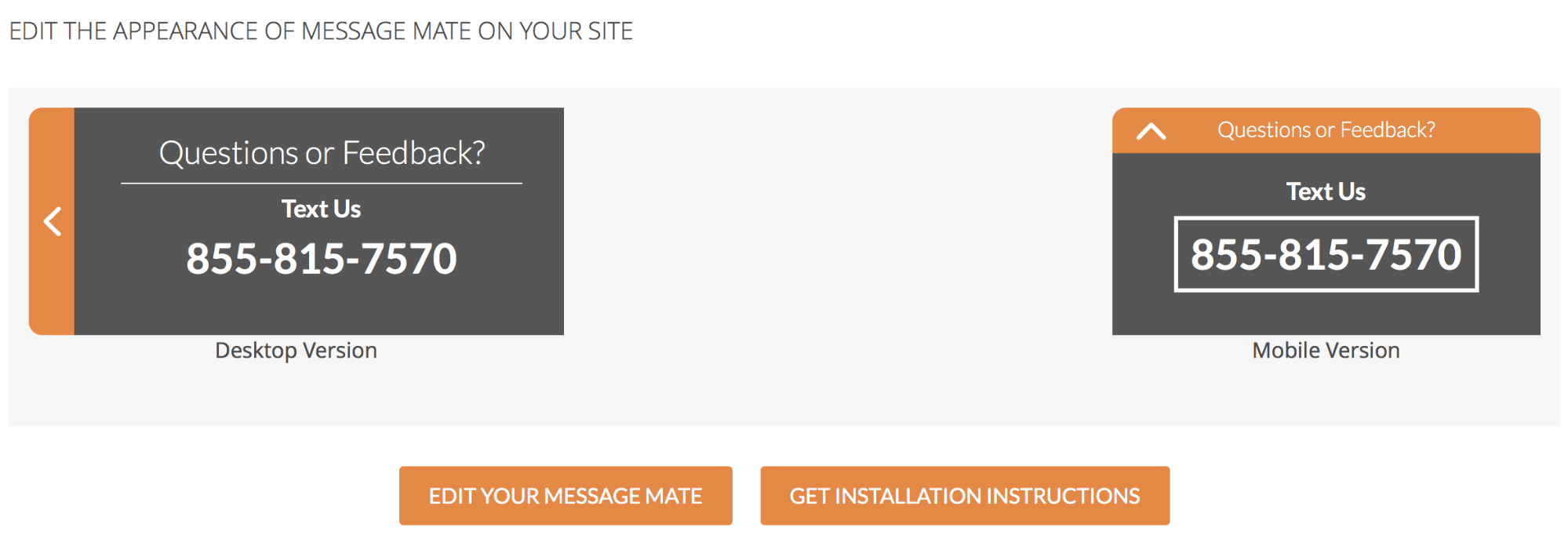
- Optimize widget settings to your needs.
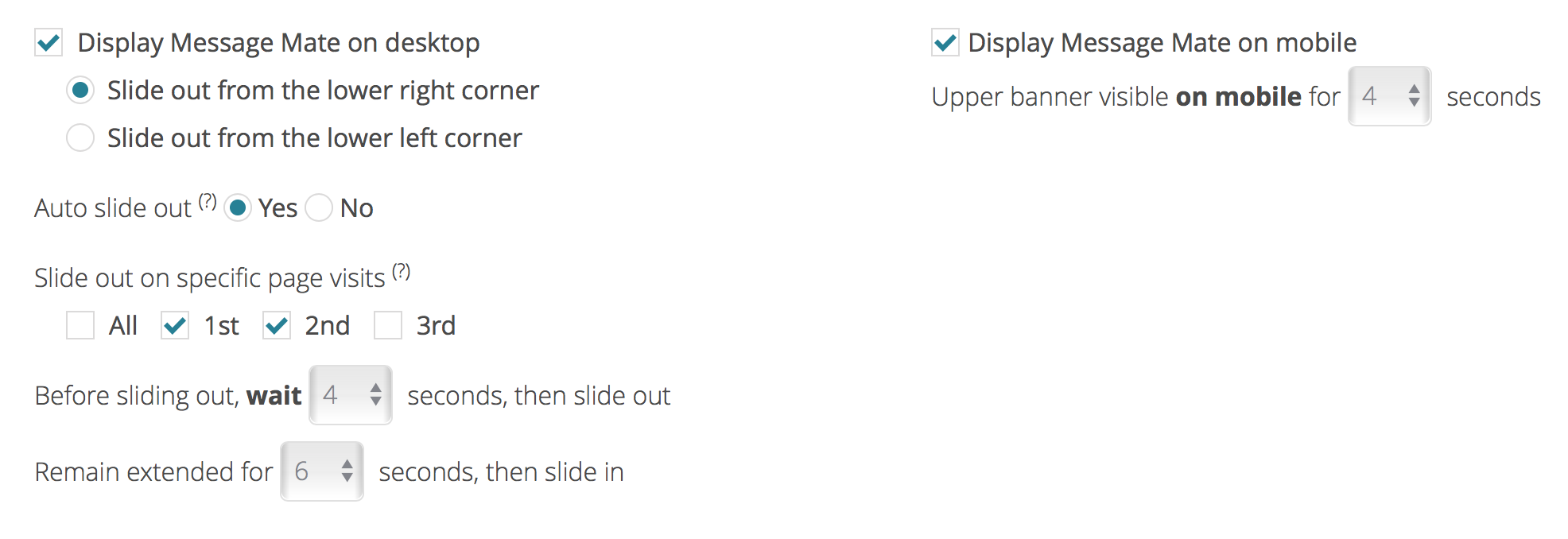
- To install the widget paste the provided line of code right before the </body> tag of your website or use one of our website platform apps (Wordpress, Weebly, Shopify & more).
Facebook Messenger integration
- Connect your Facebook business page to your IMpower account and get Messenger messages sent to your business page directly in Slack, cellphone, email etc.
- Once you connect your business account, anyone from your IMpower/Slack team can reply to these messages. They do not have to be logged into Facebook or have a formal role in your Facebook business page.
- Connect a Facebook business page by going to your IMpower dashboard, Account Settings section. Click on “Connect Now!” at the top of the page.

- After you click “Connect Now!” follow the prompts from Facebook to authorize our app to access your business page’s messages. To connect a FB business page to your IMpower account, you must be an administrator of the page (to authorize our app to access the page).
- Note: You must have an IMpower account with the Messenger integration feature enabled.
Forward to email or cell phones
- Maybe not all your teammates are on Slack or maybe some of them prefer their cellphone texting app or their email. IMpower gives you the flexibility to forward messages and respond to them from any of those channels.
- In the IMpower dashboard, in the Account Settings section, find the team member’s name and set email and SMS forwarding accordingly.
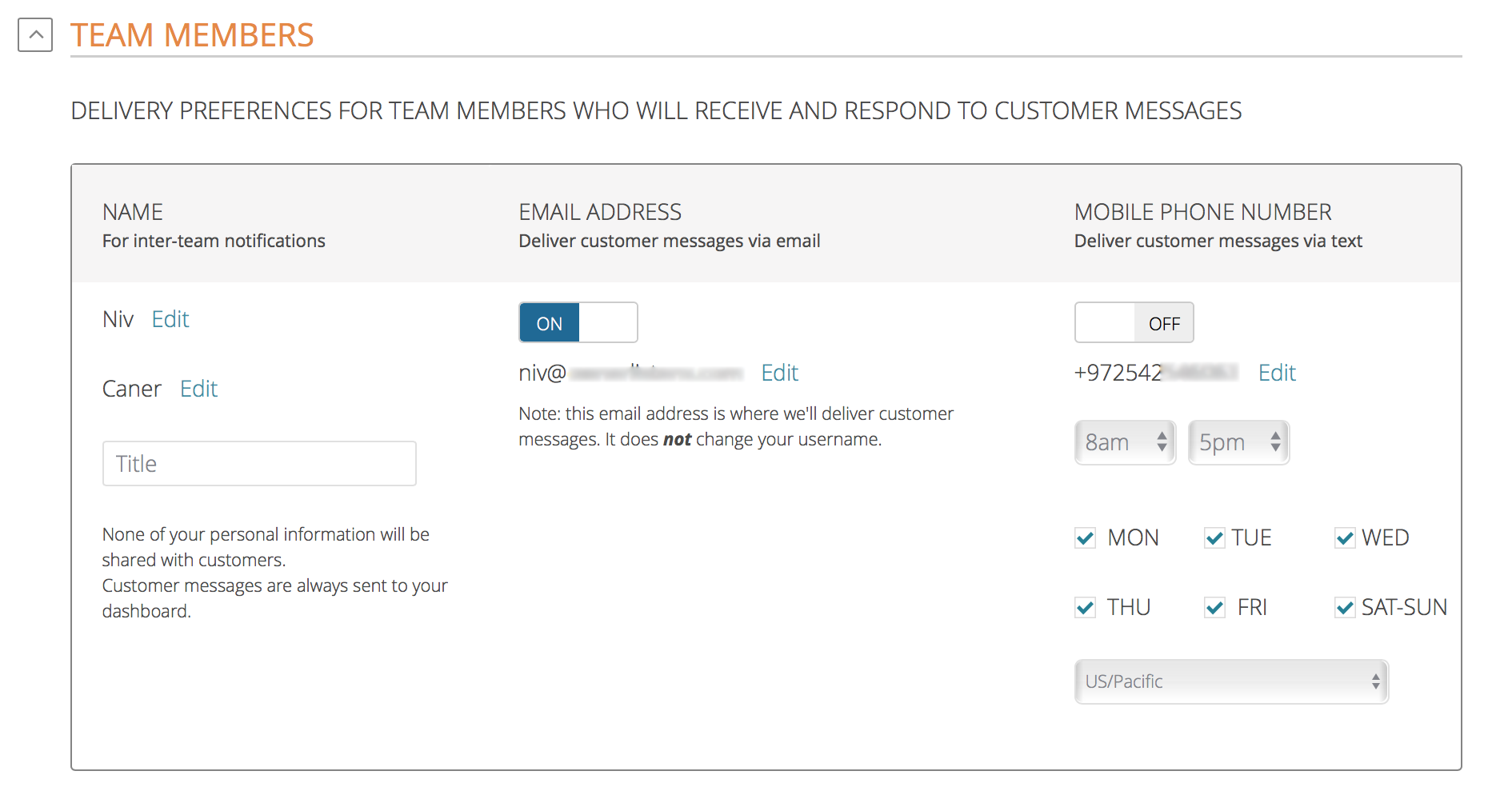
You can set SMS to only forward on certain days and hours to avoid disturbing team members when they aren’t working or are asleep.
- Regardless of channel used, all conversations automatically sync so that everyone on the team has a full view of the conversation and can jump in when needed.
- Regardless of channel used, the text recipient sees the text from your business number. No team personal cell phones or emails are shared.
Background - What is IMpower Solutions?
We provide solutions that enable businesses to text and instant message with their customers.
One of our most popular solutions includes text enabling your business line (voip, landline, toll free) and getting your texts in your email, cell phone, and our dashboard.
You can have two way conversations from your business number without exposing your personal number.
There is a host of tools to help scale texting with customers from team support, to auto replies, to FB Messenger support for your FB business page.
What is the IMpower integration for Slack?
Our integration for Slack brings texting functionality and team texting collaboration directly into Slack. With the integration you can:
- Receive and respond to texts to your business numbers in a Slack channel
- Initiate texts to anyone using the /compose feature
- Tag a team member to help you with a conversation
Do I need an IMpower account to use the integration for Slack?
Indeed, you do.
Contact us by texting or calling 855-815-7570
or email [email protected]
to learn more or set up an account.